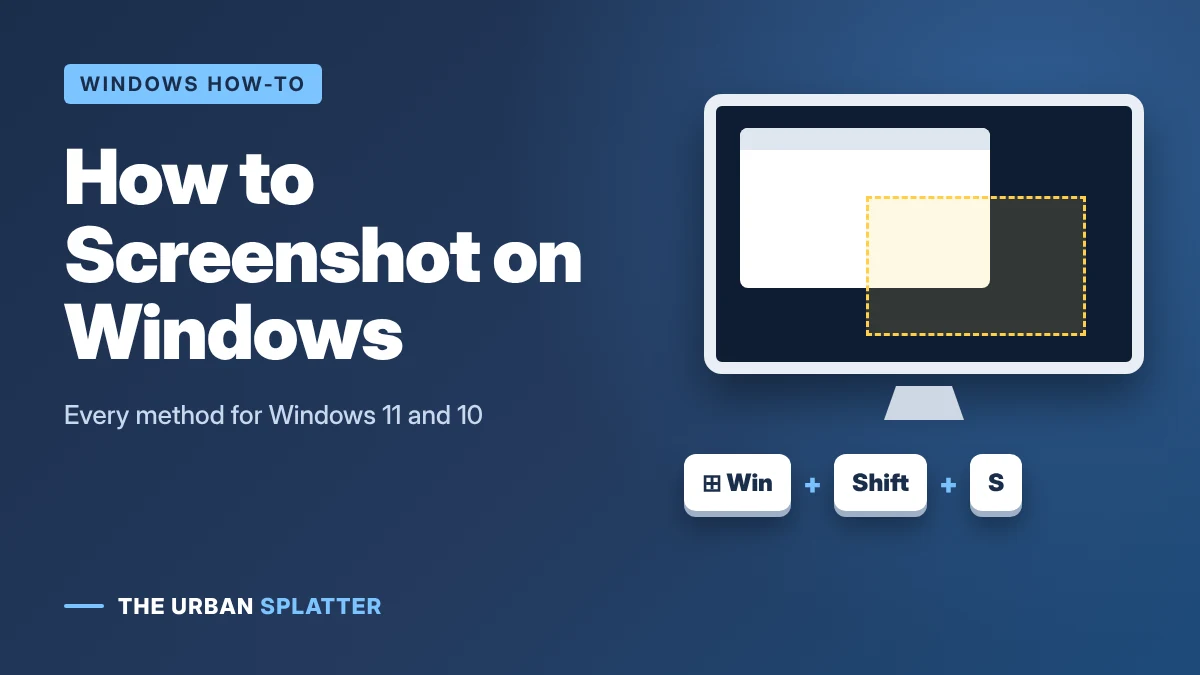
The fastest way to screenshot on Windows is Windows key + Shift + S. It opens the Snipping Tool overlay, lets you pick an area, and copies the image to your clipboard. This guide covers every way to take a screenshot on Windows 11 and Windows 10, including the Print Screen key, saving screenshots automatically, capturing one window, delayed screenshots, laptops without a Print Screen key, and how to screenshot on a Mac or Chromebook too.
In this article
- Windows Screenshot Shortcuts at a Glance
- Method 1: Windows + Shift + S (Snipping Tool)
- Method 2: The Print Screen Key (PrtSc)
- Method 3: The Snipping Tool App
- Method 4: Xbox Game Bar
- How to Screenshot on a Laptop Without a Print Screen Key
- How to Screenshot on a Mac or Chromebook
- Where Do Screenshots Go on Windows?
- Frequently Asked Questions
- The Quick Answer
Windows Screenshot Shortcuts at a Glance
| Shortcut | What it captures | Where it goes |
|---|---|---|
| Windows + Shift + S | Any area, a window or the full screen (your choice) | Clipboard, and saved in Pictures > Screenshots |
| PrtSc | The whole screen | Clipboard (or opens Snipping Tool on newer Windows 11) |
| Windows + PrtSc | The whole screen | Saved as a file in Pictures > Screenshots |
| Alt + PrtSc | The active window only | Clipboard |
| Windows + Alt + PrtSc | The active app or game window | Saved in Videos > Captures (Xbox Game Bar) |
| Windows + Volume Down | The whole screen on Surface and other Windows tablets | Pictures > Screenshots |
Method 1: Windows + Shift + S (Snipping Tool)
This is the most flexible screenshot shortcut on both Windows 11 and Windows 10. According to Microsoft Support, it opens the Snipping Tool overlay so you can capture an image snip.
- Press Windows key + Shift + S. The screen dims and a small toolbar appears at the top.
- Choose a mode: Rectangle, Window, Full screen or Freeform.
- Drag across the area you want, or click the window you want to capture.
- The screenshot is copied to your clipboard. Press Ctrl + V to paste it into a document, email or chat.
- To edit or save it, click the notification that pops up in the corner. It opens in Snipping Tool, where you can crop, draw, highlight and save.
In Windows 11, snips are also saved automatically to Pictures > Screenshots, so you can find them later even if you never paste them.
Method 2: The Print Screen Key (PrtSc)
The Print Screen key is usually labeled PrtSc, PrtScn or Print Scrn and sits near the top-right of the keyboard. According to Dell Support:
- PrtSc copies the entire screen to the clipboard. Paste it into Paint, Word or an email with Ctrl + V.
- Windows + PrtSc saves the whole screen as a file in Pictures > Screenshots. The screen dims for a moment to confirm.
- Alt + PrtSc copies only the window you are using, which is handy when you have several apps open.
On recent versions of Windows 11, pressing PrtSc on its own opens the Snipping Tool overlay instead. You can switch this on or off in Settings > Accessibility > Keyboard > “Use the Print screen key to open screen capture.”
Method 3: The Snipping Tool App
For more control, open the full app: search for “Snipping Tool” in the Start menu.
- Delay: set a 3, 5 or 10-second timer to capture menus or tooltips that disappear when you click.
- Annotate: draw with the pen or highlighter, crop, and add shapes before saving.
- Text actions: on Windows 11, copy text straight out of a screenshot.
- Save: press Ctrl + S to save as PNG or JPG wherever you want.
The Snipping Tool can also record your screen as a video, with Windows + Shift + R on Windows 11. For full videos with sound, see how to screen record on Windows.
Method 4: Xbox Game Bar
Xbox Game Bar is built into Windows 10 and 11 and is designed for games, but it works in most apps. Press Windows + Alt + PrtSc to save a screenshot of the active window, or Windows + G to open the Game Bar and click the camera icon. Screenshots are saved in Videos > Captures.
How to Screenshot on a Laptop Without a Print Screen Key
Many laptops put Print Screen on a function key. Try these:
- Fn + PrtSc, or Fn + the key labeled PrtSc (often F10, F11 or Insert).
- Fn + Windows + PrtSc to save straight to Pictures > Screenshots.
- Windows + Shift + S, which works on every Windows 10 and 11 laptop and needs no Print Screen key at all.
- On a Surface or other Windows tablet, press the power button and volume down together.
How to Screenshot on a Mac or Chromebook
If your laptop is not a Windows laptop, these are the equivalents:
| Device | Shortcut |
|---|---|
| Mac: whole screen | Command + Shift + 3 |
| Mac: selected area | Command + Shift + 4, then drag |
| Mac: all options and screen recording | Command + Shift + 5 |
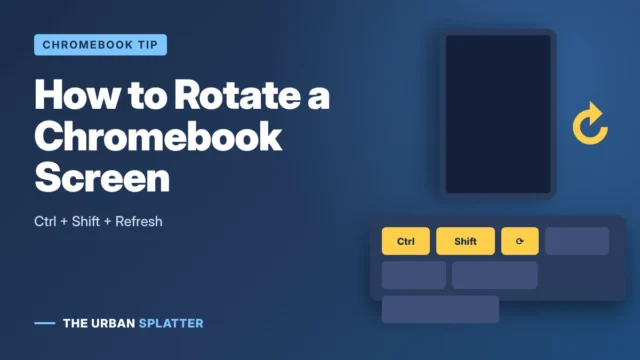
| Chromebook: whole screen | Ctrl + Show windows key (the key with stacked rectangles) |
| Chromebook: selected area | Ctrl + Shift + Show windows key |
To record a video instead, here is how to screen record on Mac.
Where Do Screenshots Go on Windows?
- Pictures > Screenshots: Windows + PrtSc, and Snipping Tool captures on Windows 11.
- Videos > Captures: Xbox Game Bar screenshots.
- Clipboard only: PrtSc and Alt + PrtSc. Paste the image with Ctrl + V, or press Windows + V to see your clipboard history if it is turned on.
If you use OneDrive, screenshots may be saved to OneDrive > Pictures > Screenshots instead.
Frequently Asked Questions
What is the shortcut for the Snipping Tool?
Windows key + Shift + S opens the Snipping Tool overlay on Windows 10 and Windows 11.
Why is my Print Screen key not working?
On many laptops you need to hold Fn. On newer Windows 11 builds, PrtSc may open the Snipping Tool instead of copying the screen, which is controlled in Settings > Accessibility > Keyboard. Some apps, such as OneDrive or Dropbox, can also take over the key.
How do I take a scrolling screenshot on Windows?
Windows does not have a built-in scrolling screenshot. In Microsoft Edge, press Ctrl + Shift + S and choose “Capture full page” to capture a whole web page.
How do I screenshot only one window?
Press Alt + PrtSc, or press Windows + Shift + S and choose Window mode.
The Quick Answer
Press Windows + Shift + S for a quick, flexible screenshot, or Windows + PrtSc to save the whole screen as a file. For more simple tech how-tos, explore the latest articles on The Urban Splatter.