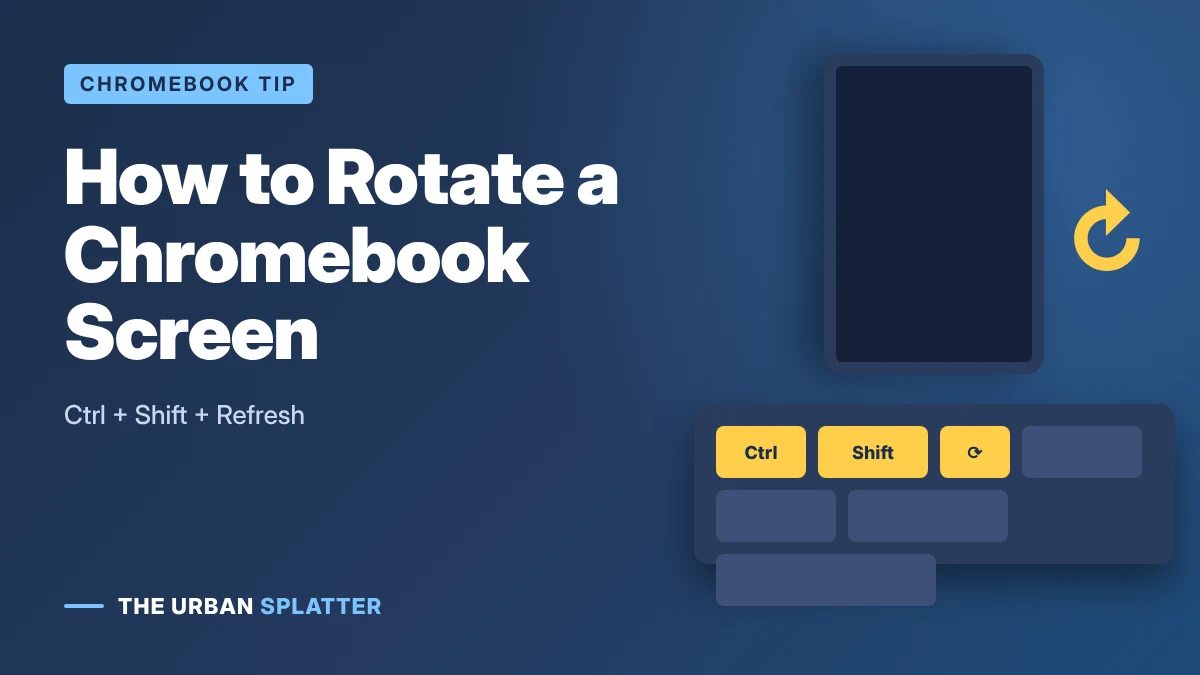
To flip or rotate the screen on a Chromebook, press Ctrl + Shift + Refresh (the circular arrow key, usually above the 3 and 4 keys). Each press rotates the display 90 degrees clockwise, so press it twice to flip the screen upside down and four times to return to normal. You can also choose an exact orientation in Settings > Device > Displays > Orientation.
In this article
Quick Answer
| Goal | How |
|---|---|
| Rotate 90° clockwise | Ctrl + Shift + Refresh (press once) |
| Flip upside down (180°) | Ctrl + Shift + Refresh twice |
| Back to normal | Keep pressing until the screen is upright (four presses in total) |
| Choose exact angle | Settings > Device > Displays > Orientation |
| Tablet / 2-in-1 mode | Use auto-rotate from Quick Settings |
Method 1: Use the Keyboard Shortcut
- Press and hold Ctrl and Shift.
- Press the Refresh key (circular arrow, usually F3 position on the top row).
- Click Continue if a “Rotate screen?” message appears.
- Press the shortcut again to keep rotating 90° at a time.
If your screen is now upside down or sideways by accident, simply press Ctrl + Shift + Refresh until it is upright again.
Method 2: Use Display Settings
- Click the time in the bottom-right corner, then the gear icon to open Settings.
- Go to Device, then Displays.
- Under Orientation, choose Standard (0°), 90°, 180° or 270°.
- The screen rotates immediately. Choose Standard to go back to normal.
Menu names can vary slightly between ChromeOS versions. You can also search “orientation” in the Settings search bar.
Method 3: Auto-Rotate on Touchscreen and 2-in-1 Chromebooks
On convertible Chromebooks, fold the screen back into tablet mode and it rotates automatically as you turn the device. To lock the orientation, open Quick Settings (click the time) and tap the Auto-rotate or rotation lock tile.
Rotate an External Monitor
If you use a second monitor, go to Settings > Device > Displays, select the external display at the top, then change its Orientation. This is useful for a vertical (portrait) monitor for reading or coding.
Mirror or Flip the Webcam Image
If you mean “flipping” your camera image rather than the screen, open the Camera app and look for the mirror option in its settings. Video apps such as Google Meet show a mirrored preview of yourself, but others in the call see you the right way around.
Troubleshooting
- Shortcut not working: make sure you press the Refresh key, not F5 on an external keyboard; on external keyboards try Ctrl + Shift + F3.
- School or work Chromebook: your administrator may have turned off rotation. Use Settings or ask IT.
- Screen stuck sideways in tablet mode: turn off rotation lock in Quick Settings.
- Touch input in the wrong place: restart the Chromebook after rotating.
- Still stuck: restart, then check for ChromeOS updates in Settings > About ChromeOS.
Frequently Asked Questions
How do I flip my Chromebook screen back to normal?
Press Ctrl + Shift + Refresh until the screen is upright, or go to Settings > Device > Displays and set Orientation to Standard.
Why did my Chromebook screen turn sideways?
Usually the rotation shortcut was pressed by accident, or the device is in tablet mode with auto-rotate on.
Can I rotate the screen on a school Chromebook?
Usually yes, with the same shortcut, unless your school administrator has disabled it.
The Bottom Line
Ctrl + Shift + Refresh is the fastest way to flip or rotate a Chromebook screen, rotating it 90° with each press. For an exact angle or an external monitor, use Settings > Device > Displays. For more Chromebook and tech guides, visit The Urban Splatter.