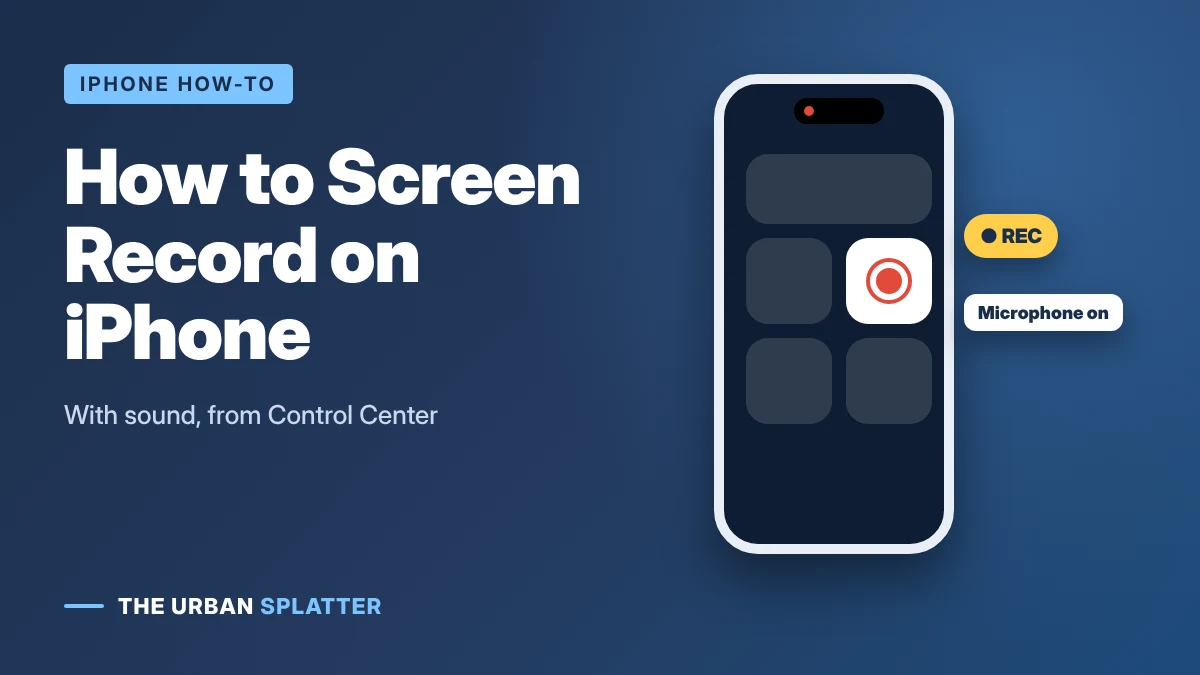
To screen record on iPhone, open Control Center, tap the Screen Recording button (a solid circle inside a ring) and wait for the three-second countdown. To stop, tap the red indicator at the top of the screen. This guide shows how to record your iPhone screen with or without sound, how to add Screen Recording to Control Center if it is missing, where recordings are saved, how to trim them and what to do when screen recording is not working.
In this article
How to Screen Record on iPhone: Quick Steps
These steps follow Apple Support:
- Open Control Center. On an iPhone with Face ID, swipe down from the top-right corner. On an iPhone with a Home button, swipe up from the bottom edge.
- Tap the gray Screen Recording button.
- Wait for the three-second countdown, then close Control Center and do what you want to record.
- To stop, tap the red recording indicator at the top of the screen (in the Dynamic Island or status bar), then tap Stop. You can also open Control Center and tap the red Screen Recording button.
- Your video is saved to the Photos app.
How to Screen Record on iPhone With Sound
An iPhone screen recording can include two kinds of sound:
- App and game sound: recorded automatically in most apps, such as videos, games and music. If you hear nothing in the recording, turn off Silent mode and turn the volume up before you start, because some apps go quiet in Silent mode.
- Your voice (microphone): off by default. Turn it on before you record.
To record with your voice:
- Open Control Center.
- Touch and hold the Screen Recording button until a menu opens.
- Tap Microphone so it turns red and shows “Microphone On.”
- Tap Start Recording, then close Control Center.
The microphone setting stays on for future recordings until you turn it off the same way. Apple notes that some apps might not allow you to record audio or video, according to Apple Support. Phone calls, FaceTime calls and many streaming apps are usually silent or black in recordings.
How to Add Screen Recording to Control Center
If you cannot find the Screen Recording button, add it:
iOS 18 and later
- Open Control Center.
- Tap the + button at the top-left, or touch and hold an empty area.
- Tap Add a Control at the bottom.
- Search for “Screen Recording” and tap it to add it.
- Tap an empty area to finish. Drag the button to wherever you like.
iOS 17 and earlier
- Open Settings > Control Center.
- Under More Controls, tap the green + next to Screen Recording.
Where Do iPhone Screen Recordings Go?
All screen recordings are saved to the Photos app. Open Photos and look in your Library, or go to Albums > Media Types > Screen Recordings to see them all in one place.
How to trim a screen recording
- Open the recording in Photos and tap Edit.
- Drag the yellow handles at each end of the timeline to cut the start and end.
- Tap Done, then Save Video or Save Video as New Clip to keep the original.
You can also tap the speaker icon in the editor to remove the sound before sharing.
iPhone Screen Recording Not Working? Try These Fixes
| Problem | Fix |
|---|---|
| The Screen Recording button is gray and will not tap | Go to Settings > Screen Time > Content & Privacy Restrictions > App Store, Media, Web & Games (or Content Restrictions) > Screen Recording, and choose Allow. A parent or work profile may control this. |
| The recording has no sound | Turn the microphone on (touch and hold the button), turn off Silent mode and check the volume. Some apps block audio. |
| The video is black | The app blocks screen recording, which is common with streaming apps. |
| Recording stops by itself | Free up storage in Settings > General > iPhone Storage. Low Power Mode and overheating can also stop it. |
| The button is missing | Add Screen Recording to Control Center (see above). |
| You cannot record while mirroring | Apple notes that you cannot screen record and use Screen Mirroring at the same time. Stop mirroring first. |
If nothing works, restart your iPhone and update it in Settings > General > Software Update.
Frequently Asked Questions
Is there a time limit for iPhone screen recording?
No. You can record until you stop or your iPhone runs out of storage. Long recordings can take up a lot of space, so check your free storage first.
Does iPhone screen recording show notifications?
Yes, notifications that appear during a recording are captured. Turn on a Focus mode, such as Do Not Disturb, before recording to hide them.
Can I screen record on iPad the same way?
Yes. On iPad, swipe down from the top-right corner to open Control Center, then follow the same steps.
How do I screen record on a Mac or Windows PC?
Computers use keyboard shortcuts instead of Control Center: Shift + Command + 5 on a Mac and Windows + Shift + R on Windows 11.
The Quick Answer
Open Control Center, tap Screen Recording and tap the red indicator to stop. Touch and hold the button first to turn on the microphone. For more simple tech how-tos, explore the latest articles on The Urban Splatter.